Build and review Flows
Use observed triggers and review messages before consequential delivery.
On this page
What you need
An owner account, a matching app scope and the data needed by the selected trigger/condition. The effective plan determines how many Flows can be live.
Steps
- Open Automations → New automation. Choose a merchant or partner goal, define the audience, then review and save a draft. Merchant drafts can target one connected app or all apps evaluated separately. Saving does not activate delivery.
- Guided setup separates Audience & trigger, Messages & timing, and Review & activate. The advanced editor remains available for detailed graph editing. Review the audience and execution scope, then configure the trigger, conditions, waits and email steps. Use app conditions to target an app; the list remains workspace-wide. Use the actual merchant state and supported merge tags; inspect preview output for missing fields.
- Review the app-scope/source acknowledgement before activating. An acknowledgement for an old Flow revision must be reviewed again after a relevant change.
- Inspect runs and the review queue. Send or dismiss review messages deliberately. Making a Flow live or approving a message can send real email or Slack content.
- Pause the Flow when changing its source or delivery setup, then verify its current revision before reactivation.
Expected result
A saved draft with a valid graph, app scope and preview; after deliberate activation, activity shows runs and message states. A draft or dismissed message is not delivery.
AI drafts and source boundaries
Email preview with an AI brief and draft_winback can call the configured Gemini service. They are optional provider actions; an unsent draft can still involve a provider request. Ordinary docs access and schema validation do not call it.
Backend custom events and browser events have different trust levels. Shopify lifecycle events do not identify the exact in-app activation step. Define any desired milestone in your app and send it through Backend events.
See MCP Flow workflows and Sender settings.
Product example
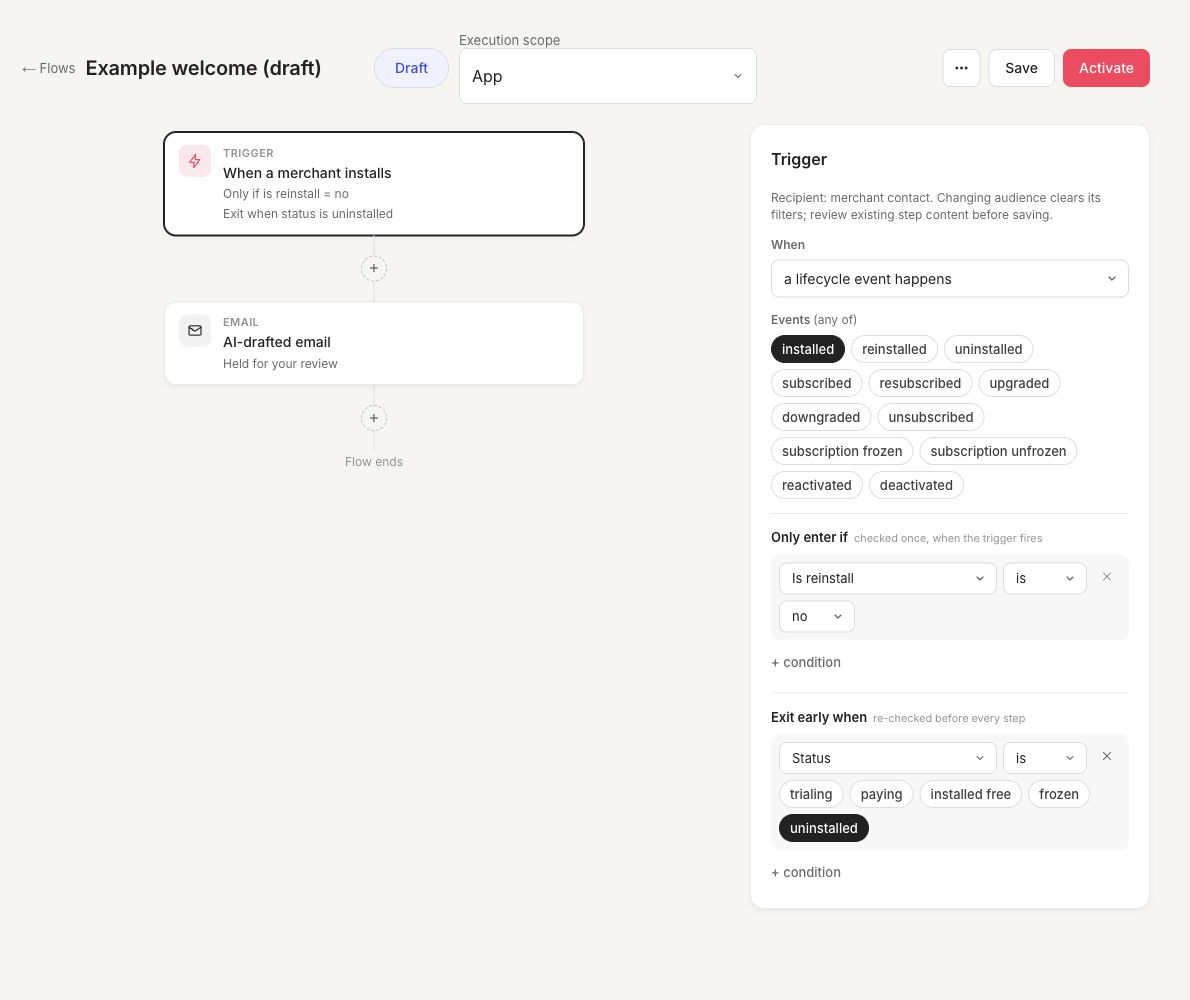
A fictional draft Flow showing app execution scope, trigger conditions and a review-held email step. No live merchant data, provider request or money movement is represented.
Troubleshooting
Unknown source conditions remain unknown, including negated checks. Absence of tracking is not proof of no merchant activity. Check source-specific custom events, current scope acknowledgement, sender readiness, mailbox limits and effective plan before retrying.
Editor details
Triggers start runs; waits delay the next step; conditions/splits route based on the supported merchant state and source. Configure each node in the inspector, connect a valid graph and review its preview before saving. App profile and known contact fields supply merge tags; an absent contact is not a usable recipient. Preview subject/body with the current supported tags rather than inventing tag names.
Plan and live scope
The effective Free plan permits one live Flow; Growth/Portfolio permit unlimited live Flows. Pausing stops live execution rather than deleting historical activity. Review existing Flow scope/version acknowledgement after scope-sensitive edits. Use Activity and the review queue to distinguish triggered runs, waiting steps, pending review, dismissed messages and delivery errors.
Editing and history
On mobile, use Steps and Selected step settings to switch editor regions. Selecting a node opens its settings. Activity separates merchant runs, merchant messages, partner runs and partner messages, with 20 records per page and UTC timestamps. The review-queue count includes held merchant and partner drafts.
History step names use each run’s saved flow version, so a later editor change does not relabel an earlier run.
Use the Archived status filter to inspect archived automations and their activity. Archived definitions are read-only; duplicate one to prepare a new draft. Pausing a flow preserves its waiting runs without blocking other live flows.
When a trial starts enters once for the opening trial window. Changing plans during that window carries over the trial and does not start the onboarding sequence again.